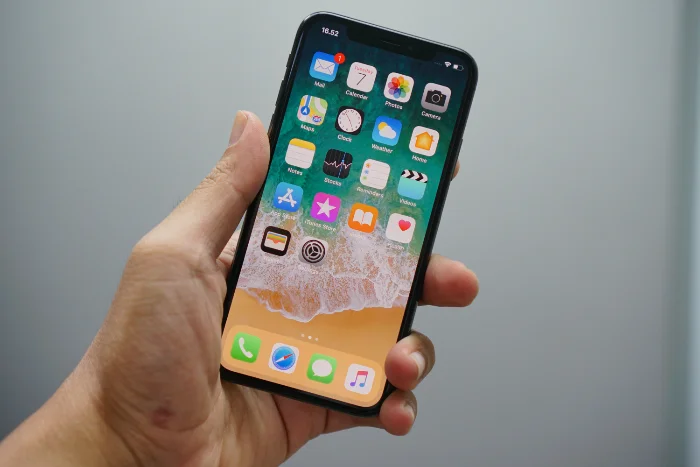
This guide is designed to show you how to remove an iPhone or iPad from your Apple ID. In the modern digital world, technology has become an inseparable part of our lives, with the Apple ecosystem leading the way. One of the linchpins of this ecosystem is the Apple ID, a powerful tool that ties your devices and data into a cohesive network. However, sometimes, you may want to remove an iPhone or iPad from your Apple ID. Whether you’re planning to give your device to someone else or you’re troubleshooting a problem, this article will guide you through the process.
What You Should Know
Before diving into the steps, it’s essential to know what removing a device from your Apple ID entails. Your Apple ID links all your devices, allowing you to share content and sync data across them via iCloud. When you remove a device, it’s disassociated from your account, meaning it will no longer sync or share content with your other devices. Therefore, this process should be undertaken with full knowledge of its implications.
Removing an iPhone or iPad from Apple ID
There are a few ways to remove a device from your Apple ID, but we will explore the most commonly used method: through the Apple ID account page. Here are the steps:
- Open a web browser and visit the Apple ID account page: Navigate to appleid.apple.com and sign in using your Apple ID credentials.
- Go to the ‘Devices’ section: Once signed in, you’ll see a dashboard displaying various sections related to your Apple ID. Find the ‘Devices’ section and click on it.
- Select the device you want to remove: Under ‘Devices’, you’ll see a list of all the devices connected to your Apple ID. Find the iPhone or iPad you wish to remove and click on it.
- Click ‘Remove from account’: After selecting the device, you’ll see some information about it and several options. Look for the ‘Remove from account’ option and click on it.
- Confirm your decision: A dialogue box will appear, asking you to confirm your decision. Click ‘Remove this [device]’ to finalize the process.
If You Don’t Have the Device Anymore
If you’ve sold or given away the device without removing it from your Apple ID, you can still disassociate it remotely. However, note that this method only works if the device is offline. If the device is online, ask the new owner to erase all content and settings. Here are the steps:
- Go to iCloud.com: Open a web browser and visit iCloud.com. Sign in using your Apple ID credentials.
- Click on ‘Find iPhone’: Once signed in, click on the ‘Find iPhone’ app.
- Click ‘All Devices’: At the top of the screen, click ‘All Devices’ to see a list of all devices connected to your Apple ID.
- Select the device you want to remove: Find the iPhone or iPad you wish to remove and click on it.
- Click ‘Remove from Account’: If the device is offline, you’ll see the ‘Remove from Account’ option. Click on it to remove the device from your Apple ID.
By following the steps outlined in this guide, you should be able to remove an iPhone or iPad from your Apple ID. Always remember to remove a device from your account before selling or giving it away, to prevent the new owner from having access to your personal information, and to allow them to use the device with their own Apple ID. We hope that you find this guide on how to remove an iPhone or iPad from your Apple ID informative. If you have any comments, questions or suggestions, please let us know in the comments section below.
Image Credit: Bagus Hernawan
Disclosure: Some of our articles include affiliate links. If you buy something through one of these links, Geeky Gadgets may earn an affiliate commission. Learn about our Disclosure Policy.
