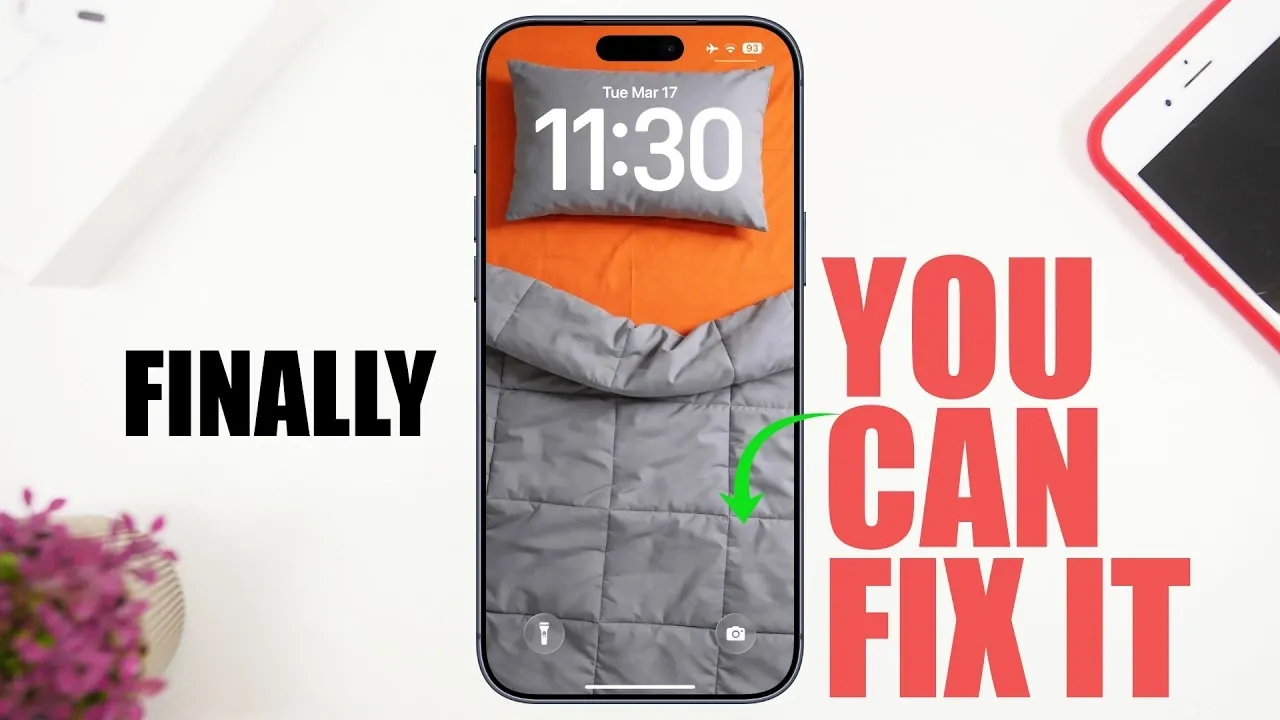
iPhones are celebrated for their sleek design and intuitive interface, but even the most advanced devices come with their share of challenges. From accidental camera activations to cluttered photo libraries, these small inconveniences can disrupt your experience. The video below from iReviews explores ten common iPhone annoyances and provides practical solutions to help you customize your device for a smoother, more efficient experience.
1. Enable Volume Control on the Lock Screen
Adjusting the volume without unlocking your iPhone can be inconvenient, especially when you’re in a hurry. To address this, you can enable the volume slider on your lock screen through the Accessibility settings. This feature allows you to adjust audio levels directly from the lock screen, saving you time and making sure quick access to volume controls when you need them most.
2. Stop Accidental Camera Activations
The swipe-to-camera feature on the lock screen is designed for quick access but can often lead to unintended activations. This is particularly frustrating when your phone is in your pocket or bag. To resolve this, navigate to your Camera settings and disable the feature. By doing so, you can prevent accidental camera launches while still maintaining easy access to the app when needed.
3. Optimize Battery Charging for Your Needs
Battery performance is a frequent concern for iPhone users, but Apple provides tools to help you manage charging based on your preferences. Consider these adjustments:
- Disable “Optimized Battery Charging”: While this feature slows charging after 80% to preserve battery health, you can turn it off if you need a full charge quickly.
- Turn off “Clean Energy Charging”: This setting prioritizes charging during times of cleaner energy availability but may slow the process. Disabling it ensures faster charging when time is a priority.
These settings allow you to balance battery health with convenience, depending on your daily needs.
4. Update Your Home Address in Apple Maps
An outdated home address in Apple Maps can lead to navigation errors and unnecessary frustration. To fix this, open the Contacts app, select “My Card,” and update your home address. Once saved, Apple Maps will use the correct location for directions, making sure a smoother navigation experience to and from your home.
5. Organize Your Photos for Easier Access
Over time, the Photos app can become cluttered with thousands of images, making it difficult to locate specific photos. Simplify your photo library with these strategies:
- Reorganize albums: Drag and drop albums into an order that works best for you, prioritizing the ones you use most often.
- Pin frequently used albums: Keep important folders like “Favorites” or “Screenshots” at the top of your library for quick access.
These small changes can make navigating your photo collection significantly easier.
6. Pause and Resume Voice Message Recordings
Recording voice messages can be frustrating if interruptions force you to start over. Fortunately, iPhones now allow you to pause and resume recordings seamlessly. This feature ensures you can pick up where you left off, saving time and effort while maintaining the flow of your message.
7. Remove Irrelevant Spotlight Search Suggestions
Spotlight search is a powerful tool, but irrelevant app suggestions can clutter the results and slow you down. To clean up your Spotlight search, long-press on an app suggestion and select “Don’t Suggest.” This customization ensures that Spotlight displays only the apps and content that are most relevant to you, improving both speed and usability.
8. Adjust the Liquid Glass Effect
The liquid glass effect on your iPhone’s display can sometimes feel overly intense, especially in bright environments. To reduce this effect, go to Display settings and switch to a tinted mode. This adjustment softens the display, reduces glare and creates a more comfortable viewing experience, particularly during extended use.
9. Improve Icon Visibility on Bright Wallpapers
Bright or colorful wallpapers can make app icons harder to see, reducing usability. To enhance visibility, apply a dark tint to your wallpaper in Display settings. This subtle change increases contrast, making sure that app icons stand out clearly against the background for easier navigation.
10. Customize Your Wallpaper for Better Usability
Wallpaper customization isn’t just about aesthetics; it can also improve functionality. By applying a dark tint or blur effect to your wallpaper, you can ensure that app icons remain clear and legible. These adjustments not only enhance the visual appeal of your device but also make it more practical to use in various lighting conditions.
Take Control of Your iPhone Experience
Addressing these ten common iPhone annoyances can significantly improve your overall experience. Whether it’s optimizing battery settings, decluttering your Photos app, or enhancing display visibility, these practical solutions allow you to tailor your device to your unique needs. By making these adjustments, you can transform your iPhone into a tool that works seamlessly for you, reducing frustration and enhancing usability in your daily life.
Explore further guides and articles from our vast library that you may find relevant to your interests in iOS 26.
- iOS 26.4 Icon Changes: How Apple’s New Liquid Glass Look Works
- Apple Releases iOS 16.1: What’s New
- Everything New in iOS 26.4 Beta 4: CarPlay, AI, and More
- iOS 26.2.1 Bug Fixes and iOS 26.3 Features Explained
- iOS 26.2.1: The Update You Didn’t Know You Needed
- iOS 26.4 Release Date, Features, and Performance Details
Source & Image Credit: iReviews
Disclosure: Some of our articles include affiliate links. If you buy something through one of these links, Geeky Gadgets may earn an affiliate commission. Learn about our Disclosure Policy.
