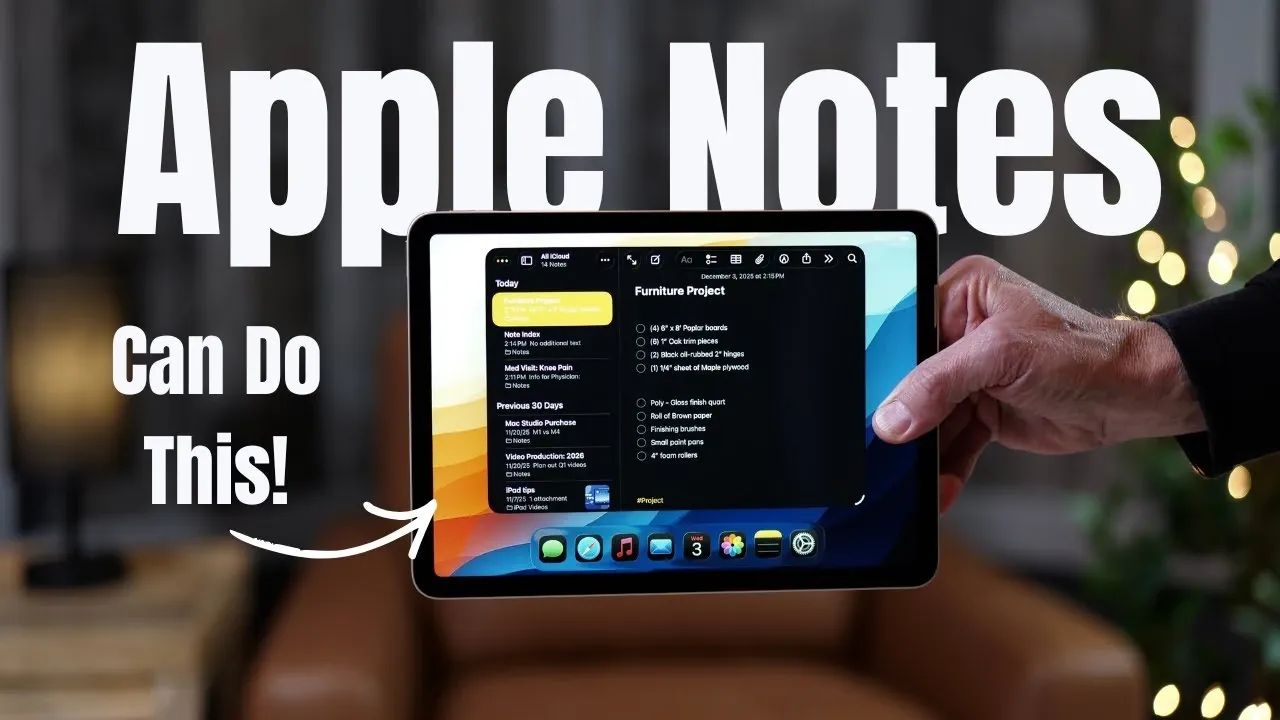
Have you ever felt overwhelmed by a sea of digital notes, struggling to locate that one crucial piece of information when you need it most? You’re not alone. While Apple Notes often flies under the radar compared to flashier productivity tools, it’s quietly evolved into a powerhouse for organization and efficiency. From managing intricate projects to capturing fleeting ideas, this app offers a surprising range of features that can transform how you work. Whether you’re a seasoned user or just scratching the surface, mastering a few key techniques can make the difference between chaos and clarity in your digital workspace.
In this quick yet impactful overview, Rich Bowlin takes you through five practical tips to unlock the full potential of Apple Notes in iOS 26. Learn how to create a centralized system that keeps your notes at your fingertips, streamline your workflow with collapsible headings, and even digitize physical documents directly into the app. But that’s just the beginning. These strategies aren’t just about saving time, they’re about bringing order to your ideas and making your tools work smarter for you. Let’s explore how Apple Notes can become the ultimate hub for your productivity.
Apple Notes Productivity Tips
TL;DR Key Takeaways :
- Create a centralized index note to organize and link related notes, making navigation and access more efficient.
- Use collapsible headings to structure long notes, reduce clutter, and improve readability during meetings or brainstorming sessions.
- Digitize physical documents using the built-in scanning tool, making them searchable and securely stored within Apple Notes.
- Integrate Apple Notes with Apple Reminders via Siri to create task reminders linked directly to specific notes for seamless task management.
- Attach notes to calendar events for quick access to relevant information during meetings or appointments, enhancing productivity and organization.
1. Create a Centralized Index for Easy Navigation
Managing multiple notes can quickly become overwhelming, especially when dealing with complex projects or extensive information. A highly effective strategy is to create a centralized “index” note that links to related notes, allowing you to organize and access information effortlessly.
- Compile links to notes on topics such as meeting agendas, research, or task lists in a single index note.
- Pin this index note to the top of your folder for quick and easy access.
For instance, if you’re working on a project, this method enables you to consolidate all relevant information in one place. This approach not only streamlines navigation but also ensures that critical details are always within reach, saving you time and effort.
2. Use Collapsible Headings to Stay Organized
Long notes can become cluttered and difficult to navigate, but collapsible headings provide an elegant solution. By structuring your notes with subheadings, you can break content into manageable sections and maintain a clear overview.
- Apple Notes allows you to collapse sections, reducing visual clutter and improving readability.
- Use this feature during meetings by creating headings for agenda items and collapsing completed sections as you progress.
For example, if you’re taking notes during a brainstorming session, collapsible headings allow you to focus on specific sections without being distracted by unrelated content. This feature helps you stay organized and ensures that your notes remain easy to navigate.
5 Apple Notes Super-Useful Tips & Tricks
Take a look at other insightful guides from our broad collection that might capture your interest in Apple Notes.
- Apple Notes Shortcuts, Macros, and MX Console Setup Guide
- How to Use Apple Notes for Organization, Collaboration and More
- New Apple Notes iOS 26 Features : Markdown, 3D Graphs & More
- How to Use Apple Notes as a Vertical Kanban Board for Tasks
- Apple Notes Workflow Tips: Folders, Tags, Tables for Creators
- How to Sync Apple Notes to Notion : 2025 Guide
- How to Use Apple Notes for Quick and Efficient Note-Taking
- Apple Notes vs Goodnotes 6: Which Note-Taking App is Best for You
- Use the Zettelkasten Method in Apple Notes for Better Organization
- Using ChatGPT in Apple Notes: A Complete Guide for Mac Users
3. Digitize Physical Documents with the Scanning Tool
Apple Notes includes a built-in scanning feature that transforms physical documents into digital files, making it an excellent tool for preserving important materials such as receipts, contracts, or handwritten notes.
- Use your device’s camera within the app to scan documents directly into Apple Notes.
- The app automatically enhances the image for clarity, and scanned content becomes searchable, even if it is handwritten.
For example, after a meeting or brainstorming session, you can scan a whiteboard or handwritten notes and later retrieve the content using keywords. This feature ensures that important information is always accessible and securely stored in your digital workspace.
4. Link Notes to Reminders Using Siri
Integrating Apple Notes with Apple Reminders can help you stay on top of tasks and deadlines. Siri makes this process seamless by allowing you to create reminders that link directly to specific notes.
- Simply say, “Remind me to review my presentation notes tomorrow at 9 AM,” and Siri will create a reminder with a direct link to the note.
- When the reminder appears, you can instantly access the note without having to search for it manually.
This integration ensures that you never lose track of important tasks or information. By combining the organizational power of Apple Notes with the time management capabilities of Apple Reminders, you can maintain a smooth and efficient workflow.
5. Attach Notes to Calendar Events for Quick Access
Apple Notes can enhance your productivity by linking notes to calendar events, making it easier to access relevant information during meetings or appointments.
- Generate a link to a note and paste it into the description of a calendar event.
- When the event begins, you can open the note directly from the calendar, saving time and effort.
For example, attaching a meeting agenda or discussion points to a calendar event ensures that you have all the necessary information at your fingertips when you need it. This feature is particularly useful for professionals who need to stay prepared and organized during busy schedules.
Maximize Your Productivity with Apple Notes
Apple Notes is more than just a note-taking app, it is a comprehensive tool that can simplify your workflow and improve organization. By creating a centralized index, using collapsible headings, digitizing documents, integrating with Siri, and linking notes to calendar events, you can fully use its capabilities. These strategies not only save time but also demonstrate how Apple Notes can serve as a central hub for managing information within the Apple ecosystem. Start applying these tips today to make your note-taking experience more efficient and productive.
Media Credit: Rich Bowlin
Disclosure: Some of our articles include affiliate links. If you buy something through one of these links, Geeky Gadgets may earn an affiliate commission. Learn about our Disclosure Policy.
