Your Mac is more than just a computer—it’s a versatile tool equipped with features designed to enhance productivity, simplify tasks, and streamline your workflow. However, many of these features remain underutilized. Whether you’re a new user or a seasoned Mac enthusiast, these tips and tricks from Proper Honest Tech will help you unlock your Mac’s full potential, making your daily tasks more efficient and enjoyable.

1. Master Finder Shortcuts
The Finder is the core of macOS, and mastering its shortcuts can significantly improve your efficiency.
- Use Command + Shift + G to jump directly to a specific folder path, bypassing manual navigation entirely.
- Drag files onto the path bar at the bottom of Finder windows to quickly move them to a desired location.
- If Finder becomes unresponsive, hold Option and right-click its Dock icon to relaunch it instantly.
These shortcuts can save you time and make file navigation seamless.
2. Streamline File Management
Efficient file management is essential for staying organized, and macOS provides several built-in tools to simplify this process.
- Rotate images or videos directly in the Preview app without the need for additional software.
- Access detailed file information with Command + I. From this window, you can lock files or enable the Stationery Pad feature to create reusable templates.
- Convert image formats, such as turning a file into a transparent PNG, using the export options in Preview.
By using these tools, you can manage your files more effectively and reduce reliance on third-party applications.
3. Navigate Apps Like a Pro
Switching between apps and managing windows doesn’t have to be a hassle. macOS offers intuitive shortcuts to make multitasking easier.
- Cycle through open applications with Command + Tab, or switch between windows of the same app using Command + `.
- Move background windows without bringing them to the front by holding Command while dragging the window.
These tips can help you maintain focus and streamline your workflow when working with multiple apps.
4. Customize Your Mac
Personalizing your Mac can make it more intuitive and enjoyable to use.
- Replace default folder icons with custom images. Open the Info window (Command + I) for a folder, then paste a new image into the icon field to give it a unique look.
- Quickly switch sound input or output devices via the Control Center, saving time during video calls or presentations.
- Adjust the Dock’s size and position in System Settings to better suit your preferences and screen layout.
Customizing your Mac not only enhances its appearance but also makes it more functional for your specific needs.
5. Use Spotlight Search
Spotlight is more than just a search tool—it’s a versatile feature that can boost your productivity.
- Drag files directly from Spotlight search results into emails, documents, or other applications without opening Finder.
- Perform quick calculations, currency conversions, or even unit conversions directly in the Spotlight search bar.
- Search for definitions, weather updates, or even app shortcuts without leaving your current task.
By fully using Spotlight, you can save time and reduce the need for additional apps or browser searches.
6. Use Accessibility Features
macOS includes a range of accessibility tools that can benefit all users, not just those with specific needs.
- Enable zooming with a scroll gesture and modifier keys to make small text or intricate details easier to see.
- Use VoiceOver to navigate your Mac with spoken feedback, which is helpful for multitasking or reviewing content hands-free.
- Activate the Dictation feature to type using your voice, a useful tool for drafting emails or notes quickly.
These features can enhance your overall Mac experience and provide alternative ways to interact with your device.
7. Maximize Siri Functionality
Siri is more than a virtual assistant—it’s a powerful tool for saving time and simplifying tasks.
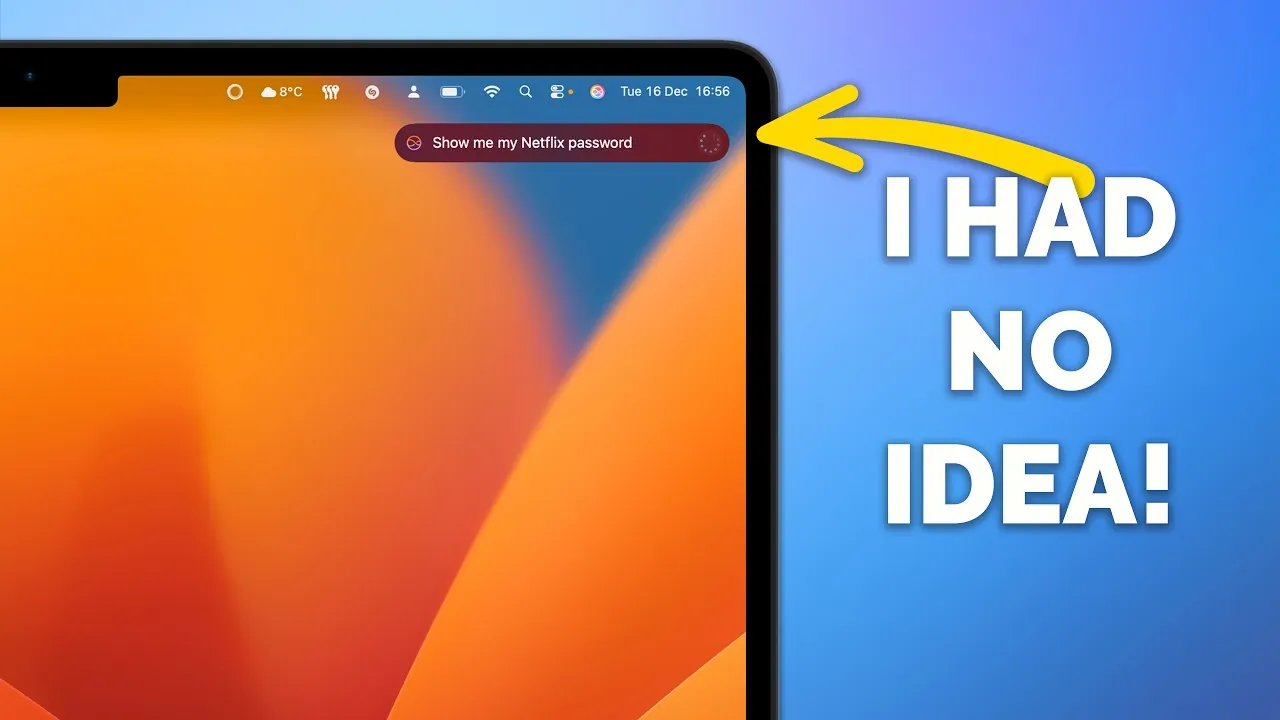
- Retrieve saved passwords from the Passwords app by asking Siri, making it easier to log into websites or apps.
- Set reminders, send messages, or search for files on your Mac using Siri’s voice commands.
- Ask Siri to open specific apps or adjust system settings, such as allowing Do Not Disturb mode or changing display brightness.
Integrating Siri into your daily workflow can help you accomplish tasks faster and with less effort.
8. Enhance Workflow with Customizable Tools
For users seeking even greater efficiency, macOS supports tools and apps that can streamline repetitive tasks.
- Use Automator or Shortcuts to create custom workflows for tasks like renaming files, resizing images, or automating email responses.
- Explore third-party tools like customizable shortcut pads or macro apps to further optimize your workflow.
- Take advantage of macOS’s built-in Hot Corners feature to assign specific actions, such as launching Mission Control or locking your screen, to the corners of your display.
These tools can help you save time and reduce the effort required for routine tasks.
By incorporating these tips and tricks into your daily routine, you can unlock the full potential of your Mac. From mastering Finder shortcuts to using Spotlight and Siri, these strategies are designed to make your workflow more efficient and enjoyable. Start exploring these features today to discover how they can enhance your productivity and simplify your tasks.
Enhance your knowledge on Mac productivity tips by exploring a selection of articles and guides on the subject.
- How to Use the Mac Notes App Like a Pro
- Master Your M4 MacBook Pro: Essential Tips & Tricks
- The Ultimate Guide to iPadOS 26: Tips and Tricks for Mac-Like
- Essential macOS Sonoma Tips & Tricks (Video)
- TRANSFORM Your Mac Mini with These 24 Tips & Tricks
Source & Image Credit: Proper Honest Tech
Disclosure: Some of our articles include affiliate links. If you buy something through one of these links, Geeky Gadgets may earn an affiliate commission. Learn about our Disclosure Policy.
