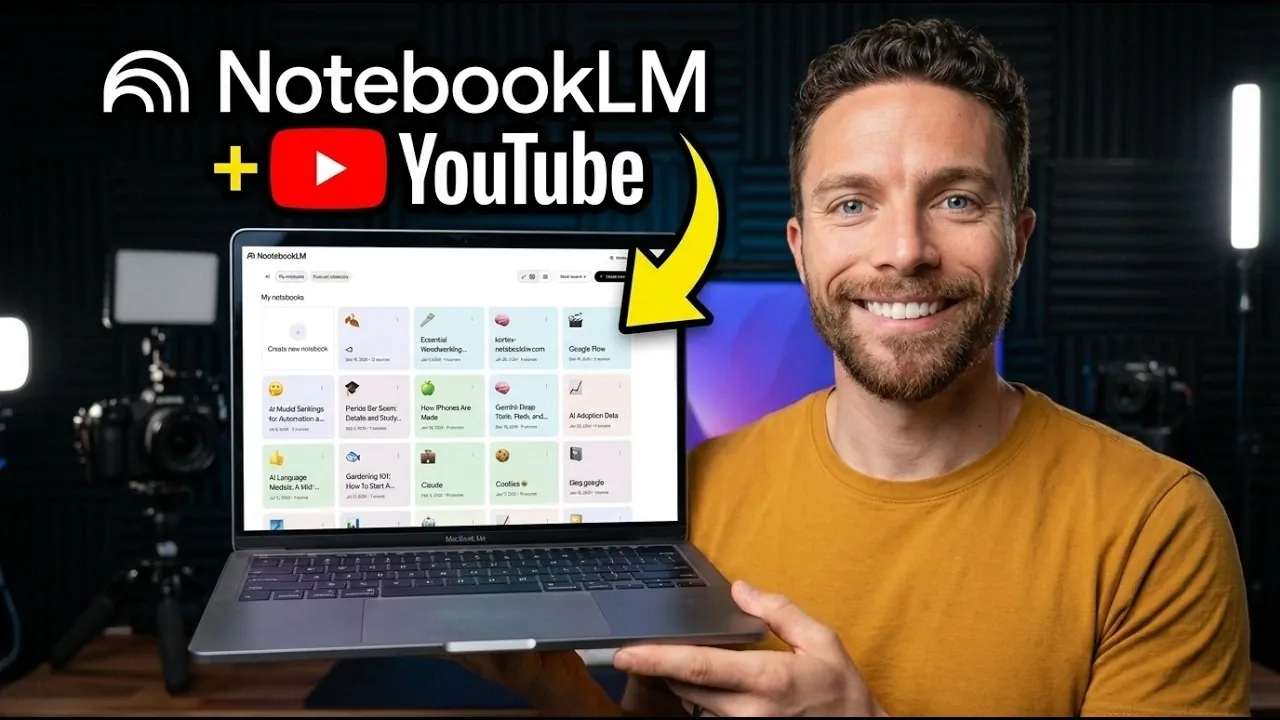
Integrating YouTube videos into NotebookLM opens up new possibilities for organizing and analyzing video content. Paul Lipsky demonstrates how users can add videos manually by pasting URLs or streamline the process with the “YouTube to NotebookLM” Chrome extension. The extension is particularly useful for importing playlists or entire channels, making it easier to manage large collections of videos. This flexibility allows students, researchers and creators to tailor their notebooks to specific projects or areas of interest, making sure that their resources remain both accessible and relevant.
In this quick-start guide, you’ll learn how to effectively incorporate YouTube videos into your workflow using NotebookLM. Key takeaways include how to use features like video summaries and full transcripts to save time and enhance understanding. You’ll also discover how to organize your content with curated playlists and directories, keeping your notebooks structured and easy to navigate. By the end, you’ll have practical strategies to make the most of NotebookLM’s video integration capabilities for your unique needs.
Integrating YouTube Videos into NotebookLM
TL;DR Key Takeaways :
- NotebookLM enables seamless integration of YouTube videos through manual URL input or the “YouTube to NotebookLM” Chrome extension, making content management efficient.
- Advanced features like video summaries, full transcripts and topic connections enhance video analysis, aiding researchers, educators and content creators in extracting insights.
- Unique functionalities include emulating YouTuber personas for personalized insights and simulated discussions, offering a fresh way to interact with content.
- Organizational tools such as video directories, curated playlists and podcast-style audio overviews ensure efficient content navigation and accessibility.
- NotebookLM Studio provides visualization tools like infographics, slide decks and mind maps, streamlining workflows and enhancing presentations or brainstorming sessions.
Adding YouTube videos to NotebookLM is a straightforward process, offering flexibility and efficiency. You can choose between two primary methods for integration:
- Manual Integration: Simply copy and paste YouTube URLs directly into your notebooks. This method is ideal for adding individual videos or specific content you want to focus on.
- Using the Chrome Extension: The “YouTube to NotebookLM” Chrome extension streamlines the process by allowing you to import videos, playlists, or even entire channels with just a few clicks. This is particularly useful for managing large volumes of content efficiently.
The Chrome extension enhances the integration experience, saving time and making sure that your content is easily accessible within the platform.
Advanced Features for Video Analysis
Once your videos are imported, NotebookLM provides a suite of tools designed to deepen your understanding and streamline your analysis. These features include:
- Video Summaries: Quickly grasp the main points of a video without needing to watch it in its entirety, saving valuable time.
- Full Transcripts: Access complete transcripts for detailed analysis, reference, or citation purposes.
- Topic Connections: Automatically link videos to related content within your notebooks, helping you uncover patterns, relationships and broader insights across topics.
These tools are particularly beneficial for researchers, educators and anyone looking to extract meaningful insights from video content efficiently.

Unlock more potential in NotebookLM by reading previous articles we have written.
- NotebookLM Infographic Presets, 10 Styles & Custom Looks
- NotebookLM Update Expands Prompt Limit to 10,000 Characters
- Claude Projects vs NotebookLM: Research Notes or Buildable Workflows
- NotebookLM Data Tables Explained, Free for All Google Users
- NotebookLM Alternative Open Notebook Lets You Build a Private AI Notebook
- NotebookLM Guide: Summaries, Slide Decks, SOPs & Data Tables
- NotebookLM Feature Guide : Cinematic Video Overviews
- NotebookLM Update: Automate Research & Build Reports in Minutes
- NotebookLM-Gemini Integration for Faster Plans, Briefs, Answers
- How to Use NotebookLM & Gemini 3 for Fast, Accurate Research
Emulating YouTubers with NotebookLM
One of the standout features of NotebookLM is its ability to emulate the persona of a YouTuber. By importing an entire YouTube channel, you can configure your notebook to mimic the creator’s tone, style and perspective. This feature enables you to:
- Generate Personalized Insights: Gain unique perspectives based on the creator’s approach and expertise.
- Simulated Discussions: Engage in interactive, simulated conversations with the emulated persona for a deeper understanding of their content.
This innovative capability offers a fresh way to interact with content, making it particularly useful for exploring diverse viewpoints or conducting in-depth analyses.
Organizing Content with Video Directories
NotebookLM allows you to maintain a well-structured and organized repository of video content through its video directory feature. These directories include:
- Concise Summaries: Each video is accompanied by a one-sentence summary, making navigation and retrieval quick and efficient.
- Curated Playlists: Create playlists or collections tailored to specific topics, themes, or discussions for focused study or reference.
This feature ensures that your notebooks remain organized and aligned with your specific goals, whether for academic research, content creation, or personal learning.
Transforming Videos into Audio Overviews
For users who prefer audio content, NotebookLM offers the ability to convert videos into podcast-style summaries. These audio overviews can be customized to suit your preferences, including:
- Topic-Specific Deep Dives: Focus on particular themes or subjects for in-depth exploration.
- Critical Analyses: Listen to critiques or evaluations of the video content.
- Dynamic Presentations: Enjoy debate-style or conversational formats for a more engaging listening experience.
This feature is ideal for reviewing content on the go, repurposing videos into accessible formats, or multitasking while consuming information.
Enhancing Audio Overviews with the Cortex Extension
The Cortex extension enhances the functionality of audio overviews by introducing advanced tools for management and accessibility. Key features include:
- Search and Dashboard Tools: Easily locate and organize your audio summaries for quick access.
- Automated Podcast Feeds: Sync your audio summaries with podcast apps like Apple Podcasts via RSS, making sure you can listen to them conveniently on your preferred platform.
This integration ensures that your audio content remains up-to-date and readily available, enhancing your productivity and flexibility.
Visualizing Insights with NotebookLM Studio
NotebookLM Studio offers a range of tools to help you visualize and present your insights effectively. These tools include:
- Infographics: Create visually appealing representations of key takeaways for better comprehension and communication.
- Slide Decks: Summarize content into presentation-ready formats, perfect for teaching or professional use.
- Mind Maps: Map out relationships and connections between ideas to better understand complex topics.
These visualization tools are particularly valuable for brainstorming, teaching, or presenting your findings in a clear and engaging manner.
Streamlining Your Workflow
NotebookLM is designed to optimize your workflow by combining video integration, audio overviews and automation. Here’s how it helps:
- Time-Saving Automation: Automate repetitive tasks such as importing and organizing content, freeing up time for more critical activities.
- Enhanced Focus: Spend less time managing content and more time engaging with and understanding the material.
- Effective Organization: Keep your notes and resources structured for quick access and improved productivity.
Whether you are analyzing complex topics, preparing for presentations, or creating new content, NotebookLM ensures that you can work smarter and more efficiently.
Media Credit: Paul J Lipsky
Disclosure: Some of our articles include affiliate links. If you buy something through one of these links, Geeky Gadgets may earn an affiliate commission. Learn about our Disclosure Policy.
