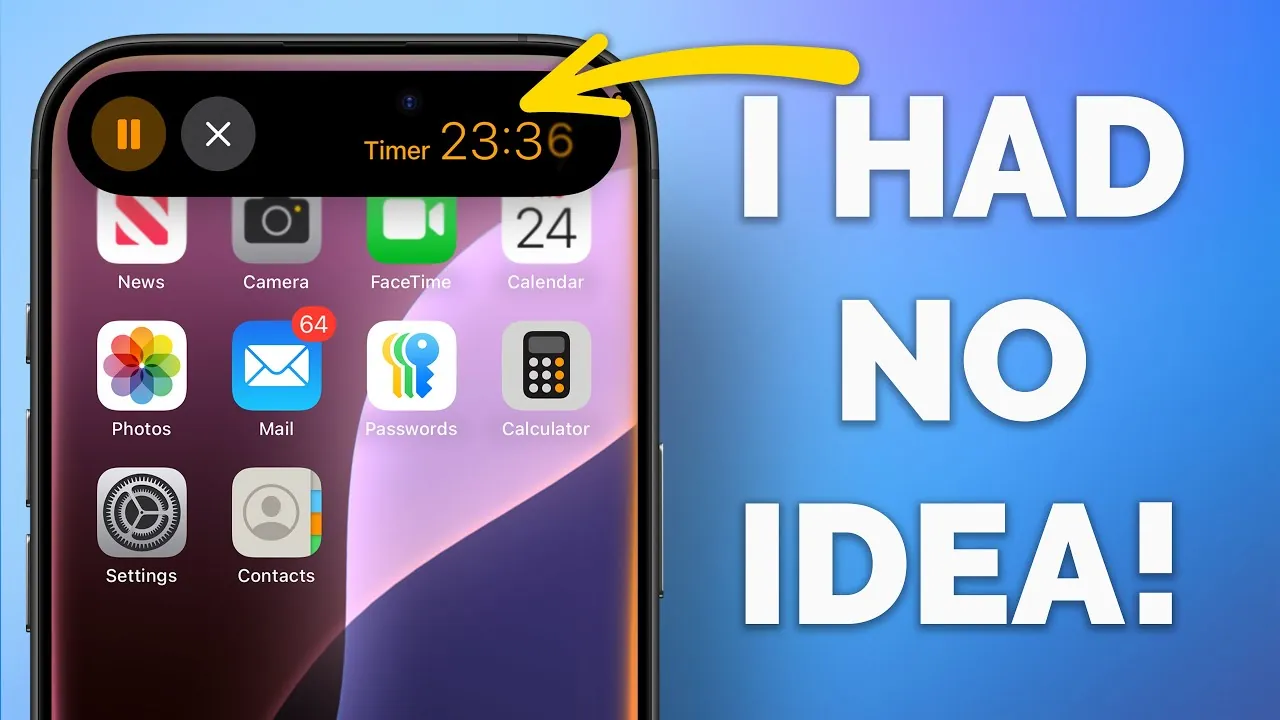
Your iPhone is more than just a device for calls and texts—it’s a versatile tool packed with features designed to enhance your daily life. While many users are familiar with its basic functions, there are several lesser-known features that can significantly improve your productivity, organization, and overall experience. Here are ten practical features you can start using today to unlock the full potential of your iPhone in a new video from Proper Honest Tech.

1. Set Timers Instantly with Siri
Time management becomes seamless with Siri’s timer functionality. Simply say, “Hey Siri, set a timer for 10 minutes,” and your iPhone will handle the rest. Whether you’re preparing a meal, working out, or managing a busy schedule, this hands-free feature ensures you stay on track without needing to open the Clock app. It’s a quick and efficient way to manage time-sensitive tasks.
2. Use Voice-to-Emoji Input for Creative Messaging
Personalizing your messages is easier than ever with voice-to-emoji input. By dictating phrases like “heart emoji” or “laughing face emoji,” your iPhone will automatically insert the corresponding emoji into your text. This feature saves time by eliminating the need to scroll through the emoji keyboard, making your conversations more expressive and engaging with minimal effort.
3. Share Photos Easily with Temporary iCloud Links
Sharing photos and videos is simplified with temporary iCloud links. This feature generates a link that remains active for 30 days, allowing recipients to view or download your shared content—even if they don’t own an iPhone. It’s a convenient way to share large files without worrying about compatibility issues or storage limitations. To use this feature, select the photos you want to share, tap the share icon, and choose “Copy iCloud Link.”
4. Declutter iMessage with Mini App Management
The iMessage app drawer can quickly become crowded with unused mini apps, making it harder to find what you need. To streamline your messaging experience, open the app drawer, tap the three-dot icon, and customize which apps appear. By removing unnecessary apps, you can keep your interface clean and focused, making sure a smoother and more efficient messaging experience.
5. Organize Emails with Smart Mailboxes
The Mail app’s smart mailboxes feature is a powerful tool for managing your inbox. By allowing categories like “Flagged,” “VIP,” and “Today,” you can automatically sort your emails and quickly access important messages. This feature is particularly useful for staying organized and reducing the time spent searching through a cluttered inbox. To activate smart mailboxes, go to the Mail app, tap Edit in the top-right corner, and select the categories you want to enable.
6. Customize Album Covers in Your Photo Library
Navigating your photo library becomes more intuitive when you customize album covers. To do this, long-press on an image within a specific album, such as a people or pets album, and select “Make Key Photo.” This small adjustment allows you to personalize your albums and quickly identify them at a glance, adding a touch of organization to your photo collection.
7. Take Control of Subscriptions
Managing subscriptions directly from your iPhone helps you avoid unexpected charges and maintain control over recurring payments. Navigate to Settings > Your Name > Subscriptions to view, modify, or cancel any active subscriptions. This feature ensures transparency and gives you the ability to monitor your expenses, making it easier to avoid unnecessary costs.
8. Adjust Haptic Touch Speed for Better Responsiveness
Customizing your iPhone’s haptic touch settings can improve the responsiveness of your device. Go to Settings > Accessibility > Touch > Haptic Touch to choose between default, fast, or slow response speeds. This adjustment allows you to tailor the touch sensitivity to your preferences, making sure smoother interactions and a more personalized user experience.
9. Declutter Your Home Screen with Batch App Removal
Reorganizing your home screen is faster with the batch app removal feature. Enter jiggle mode by long-pressing an app, then select multiple apps to move them to the app library in one action. This method saves time and helps you maintain a tidy and organized home screen, making it easier to find the apps you use most frequently.
10. Unlock Visual Search with Google Lens
Google Lens is a powerful tool for identifying objects, landmarks, or products in seconds. Open a screenshot or photo in the Google app, and Lens will analyze the image to provide relevant information or similar visuals. This feature is invaluable for quick research, shopping, or learning more about the world around you, offering a seamless way to access information directly from your iPhone.
Enhance Your iPhone Experience
These ten features demonstrate the versatility of your iPhone, offering practical tools to simplify tasks, improve organization, and enhance productivity. By incorporating these capabilities into your daily routine, you can make your device work smarter and more efficiently for you. Start exploring these hidden features today to unlock new possibilities and take full advantage of what your iPhone has to offer.
Below are more guides on iPhone productivity features from our extensive range of articles.
- 10 Apple Ecosystem Features for Maximum Productivity
- How to Use Apple Notes in iOS 18 to Improve Productivity
- Boost Your Productivity with These 10 iOS 18 Tips
- The Ultimate iOS 18.5 Productivity Hacks You’re Not Using Yet
- The Ultimate iOS 18 Productivity Setup (iPhone 16)
Source & Image Credit: Proper Honest Tech
Disclosure: Some of our articles include affiliate links. If you buy something through one of these links, Geeky Gadgets may earn an affiliate commission. Learn about our Disclosure Policy.
