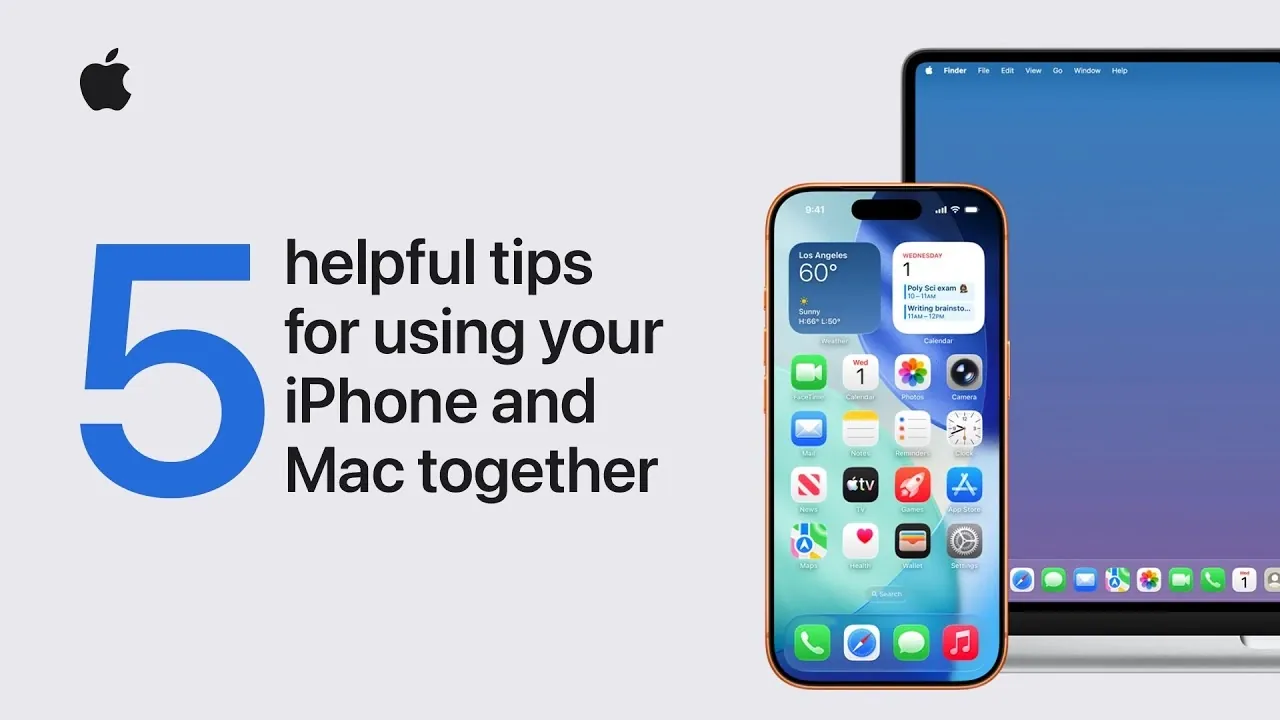
Integrating your iPhone and Mac can streamline your daily tasks by taking advantage of Apple’s ecosystem. In a recent guide by Apple Support, practical tips are shared to help you make the most of features like Universal Clipboard and AirDrop. For example, Universal Clipboard allows you to copy text or images on one device and paste them directly onto the other, saving time and eliminating the need for external storage. To get started, ensure both devices are updated, signed into the same Apple ID and have Bluetooth and Wi-Fi enabled.
Discover how to use AirPlay for wireless streaming, scan documents directly to your Mac using your iPhone’s camera and organize your workflow with cross-device widgets. You’ll also learn how AirDrop simplifies file sharing and how these features can enhance both productivity and convenience. Whether you’re managing work projects or personal tasks, this guide provides actionable steps to help you fully connect your Apple devices.
Universal Clipboard: Copy and Paste Across Devices
TL;DR Key Takeaways :
- Universal Clipboard: Seamlessly copy and paste text, images, or files between your iPhone and Mac, enhancing multitasking and eliminating the need for external tools.
- AirPlay: Wirelessly stream content from your iPhone to your Mac or other devices, ideal for presentations or entertainment without additional cables.
- Document Scanning: Use your iPhone’s camera to scan physical documents directly into your Mac, simplifying digitization and organization of important files.
- AirDrop: Quickly and securely transfer files between your iPhone and Mac using Bluetooth and Wi-Fi, perfect for collaborative projects or large file sharing.
- Widgets Integration: Display iPhone widgets on your Mac desktop for quick access to essential tools and information, improving organization and workflow efficiency.
The Universal Clipboard feature enables you to copy content on one device and paste it onto the other seamlessly. This is particularly useful for tasks such as editing documents, sharing information, or transferring snippets of text, images, or files without the need for additional tools.
To use Universal Clipboard:
- Ensure both your iPhone and Mac are signed into the same Apple ID and connected to the same Wi-Fi network.
- Copy the desired content on one device, such as a paragraph of text or an image.
- Switch to the other device and paste the content as if it were local.
This feature is invaluable for multitasking, such as transferring research notes, sharing media, or editing projects across devices. It eliminates the need for external storage or email, saving you time and effort.
AirPlay: Stream Content Wirelessly
AirPlay allows you to stream content from your iPhone to your Mac or other compatible devices, such as an Apple TV. This feature is ideal for both professional and personal use, whether you’re presenting slides during a meeting or watching videos on a larger screen.
To activate AirPlay:
- Swipe down on your iPhone to open the Control Center.
- Tap the AirPlay icon and select your Mac from the list of available devices.
AirPlay provides a smooth and wireless way to share content, eliminating the need for additional cables or software. For example, you can mirror your iPhone screen to your Mac to display a presentation or stream a movie, enhancing both convenience and functionality.

Enhance your knowledge on Apple iPhone by exploring a selection of articles and guides on the subject.
- iPhone 18 Pro Max Leaks: Features, Pricing, and Release Date
- iPhone 18 Pro Max Leaks: Display, Battery, and Camera Upgrades
- iPhone 18 Pro Max Leak: Dynamic Island Stays For 2026
- Apple’s 2026 iPhone Lineup: iPhone Fold and 18 Pro Details
- iPhone 18 Pro Front Camera: Massive 24MP Upgrade & More
- Iphone Fold Pricing iPhone: $1,999 for 256GB, $2,199 for 512GB
- iPhone 18 Pro Max Leaks: Record 40-Hour Battery Life Rumored
- Samsung’s Display Tech in iPhone 18 Pro Max Explained
- Is Deep Red the iPhone 18 Pro’s New Flagship Color?
- iPhone 18 Pro Camera Leak: New Variable Aperture Revealed
Document Scanning: Turn Physical Documents into Digital Files
Your iPhone’s camera doubles as a powerful scanner, allowing you to digitize physical documents and send them directly to your Mac. This feature is integrated into apps like Notes and Mail, making it easy to archive important paperwork or share files instantly.
To scan a document:
- Open the Notes app on your Mac and select “Insert from iPhone.”
- Choose the “Scan Documents” option from the menu.
- Use your iPhone’s camera to capture the document. The system will automatically detect the edges and the scanned file will appear instantly on your Mac.
This tool is particularly useful for digitizing receipts, contracts, or handwritten notes. It reduces clutter and ensures that your important documents are easily accessible and securely stored.
AirDrop: Quick and Wireless File Transfers
AirDrop simplifies file sharing between your iPhone and Mac by using Bluetooth and Wi-Fi to transfer files quickly and securely. Whether you’re sharing photos, videos, or documents, AirDrop eliminates the need for cables or cloud services.
To use AirDrop:
- Enable AirDrop on both devices through the Control Center (on iPhone) or Finder (on Mac).
- Select the file you want to share on your iPhone.
- Tap the Share icon, choose AirDrop and select your Mac from the list of available devices.
This feature is especially helpful for collaborative projects or transferring large files. For instance, you can instantly share a high-resolution video or a presentation without worrying about file size limits or upload times.
Widgets: Stay Organized Across Devices
Apple’s latest updates allow you to display widgets from your iPhone directly on your Mac desktop. This feature provides quick access to essential tools and information, such as your calendar, reminders, or weather updates, without switching between devices.
To add widgets:
- Ensure both devices are updated to the latest software versions.
- On your Mac, open the Notification Center and click “Edit Widgets.”
- Select the widgets synced from your iPhone and customize their placement on your desktop.
This integration helps you stay organized by centralizing important information. For example, you can monitor your daily schedule or track tasks at a glance, improving your overall workflow and reducing distractions.
Maximizing the Apple Ecosystem
By using features like Universal Clipboard, AirPlay, document scanning, AirDrop, and widgets, you can create a seamless and efficient experience between your iPhone and Mac. These tools not only save time but also eliminate the need for third-party apps or additional hardware, simplifying your daily tasks.
To ensure smooth connectivity:
- Keep both devices updated to the latest software versions.
- Sign into the same Apple ID on both devices.
- Enable Bluetooth, Wi-Fi and Handoff for uninterrupted functionality.
With these tips, you can fully harness the power of Apple’s ecosystem, enhancing your productivity and making your workflow more cohesive. Whether you’re working on a project, managing personal tasks, or simply enjoying entertainment, these features ensure that your devices work together seamlessly.
Media Credit: Apple Support
Disclosure: Some of our articles include affiliate links. If you buy something through one of these links, Geeky Gadgets may earn an affiliate commission. Learn about our Disclosure Policy.
