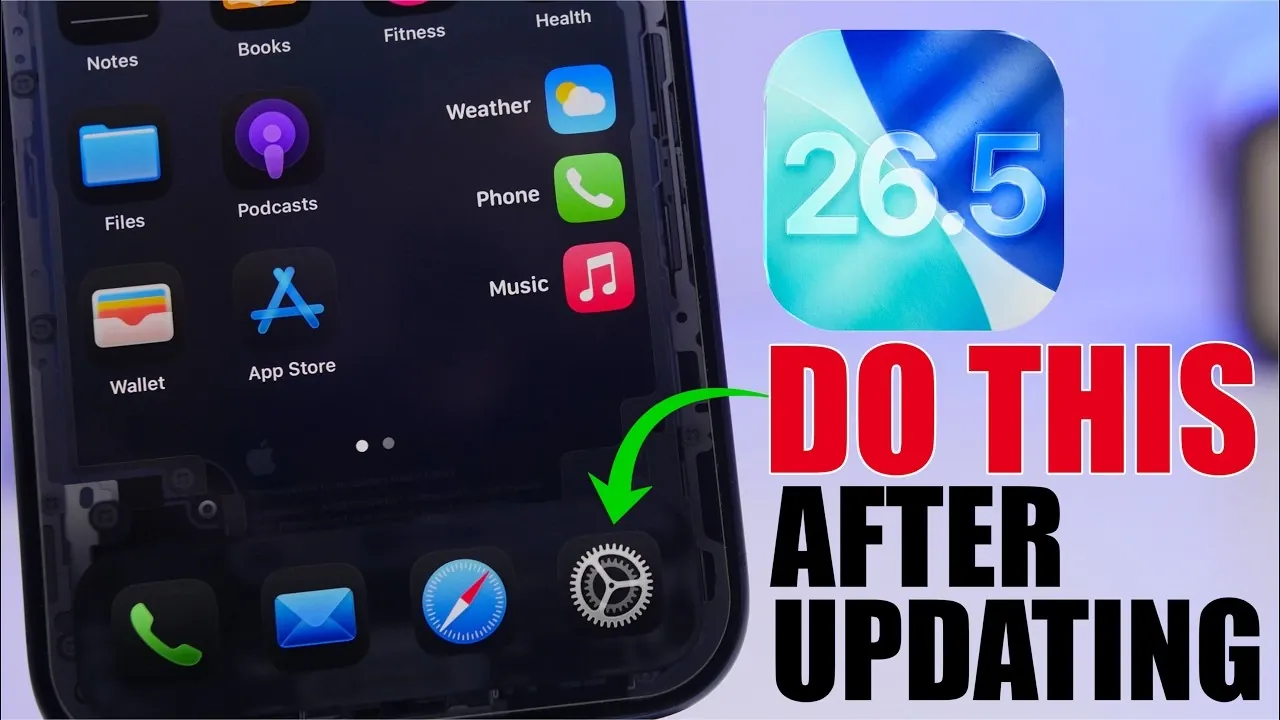
Apple has officially rolled out iOS 26.5, marking what is likely the final major update in the iOS 26 series. While installing the update is a significant step, it is only the beginning of making sure your device operates at its best. To fully use the new features, maintain security and optimize performance, there are several critical actions you should take immediately after the update. These steps will help safeguard your device’s functionality and longevity. The video below from iReviews gives us more details on what to do after installing the update.
Exit the Beta Program and Verify the Update
If you were part of Apple’s beta testing program, it is essential to confirm that your device is running the final, stable version of iOS 26.5. This ensures you will receive future updates, including minor patches and security fixes, without the instability associated with beta releases. To verify your software version, navigate to Settings > General > About and check the installed version. If you are still enrolled in the beta program, exit it by going to Settings > General > Software Update > Beta Updates and selecting Off. This step is critical to avoid potential disruptions from experimental software.
Enable Automatic Updates
Keeping your device updated is a fundamental aspect of maintaining security and performance. Allowing automatic updates ensures that your device will install incremental updates, such as iOS 26.5.1, as soon as they become available. To activate this feature, go to Settings > General > Software Update and toggle on Automatic Updates. This proactive approach minimizes vulnerabilities and ensures your device remains stable and secure without requiring manual intervention.
Check for Carrier Updates
Carrier updates are often overlooked but play a crucial role in optimizing your device’s network performance. These updates can enhance call quality, improve data speeds and resolve connectivity issues. After installing iOS 26.5, check for carrier updates by navigating to Settings > General > About. If an update is available, you will receive a prompt to install it. Keeping your carrier settings up to date ensures seamless communication and network reliability.
Update Your Apps
App compatibility is a key consideration following a major iOS update. Developers frequently release updates to ensure their apps function smoothly with the latest operating system. Open the App Store and manually update your apps, or enable automatic updates by going to Settings > App Store and toggling on App Updates. This step helps prevent crashes, bugs and performance issues caused by outdated app versions, making sure a seamless user experience.
Review Your Battery Health
iOS 26.5 introduces recalibration features that may provide a more accurate assessment of your battery’s health. After updating, it is advisable to check your battery status by navigating to Settings > Battery > Battery Health & Charging. If your battery’s maximum capacity is below 80%, it may be time to consider a replacement. A healthy battery is essential for maintaining optimal performance, extending your device’s lifespan and making sure consistent functionality.
Audit Privacy and Security Settings
Major updates can sometimes reset or alter privacy settings, making it important to review and adjust them. Start by checking app tracking transparency under Settings > Privacy & Security > Tracking. Disable tracking for apps that do not require it. Next, review location services under Privacy & Security > Location Services and limit access to only the apps that genuinely need it. Additionally, audit permissions for your camera, microphone and media access. These adjustments not only enhance your privacy but can also contribute to improved battery life and device performance.
Install Security Patches
Security patches are often released shortly after major updates to address newly identified vulnerabilities. By allowing automatic updates, you ensure these patches are installed promptly. Regularly check for updates under Settings > General > Software Update to stay ahead of potential threats. Keeping your device secure is a continuous process and staying updated is one of the most effective ways to protect your data and privacy.
Optimize Device Performance
To ensure your device operates smoothly on iOS 26.5, take steps to optimize its performance. Begin by clearing unnecessary files and deleting unused apps to free up storage space. Restart your device to allow the update to fully integrate and stabilize. Additionally, consider allowing Background App Refresh selectively under Settings > General > Background App Refresh to ensure only essential apps update in the background. These simple actions can significantly improve your device’s speed and responsiveness.
Maximizing the Benefits of iOS 26.5
Updating to iOS 26.5 is a pivotal step, but making sure your device is optimized afterward is equally important. By exiting the beta program, allowing automatic updates, checking for carrier and app updates, reviewing battery health, auditing privacy settings and applying security patches, you can maximize your device’s performance and security. These proactive measures not only enhance your user experience but also ensure you get the most out of Apple’s latest, and likely final, update for the iOS 26 series.
Learn more about iOS 26.5 with other articles and guides we have written below.
- iOS 26.5 Beta 4 Released: Top Features Revealed
- iOS 26.5 Beta 3 Released: Here’s What’s New for Your iPhone
- Hidden Changes in iOS 26.5 Beta 3 You Might Have Missed
- iOS 26.5 Release Date Set: When Your iPhone Gets Apple’s Next Big Update
- Don’t install iOS 26.5 Beta 2 yet, unless you want to carry a charger for the first time this year
Source & Image Credit: iReviews
Disclosure: Some of our articles include affiliate links. If you buy something through one of these links, Geeky Gadgets may earn an affiliate commission. Learn about our Disclosure Policy.
