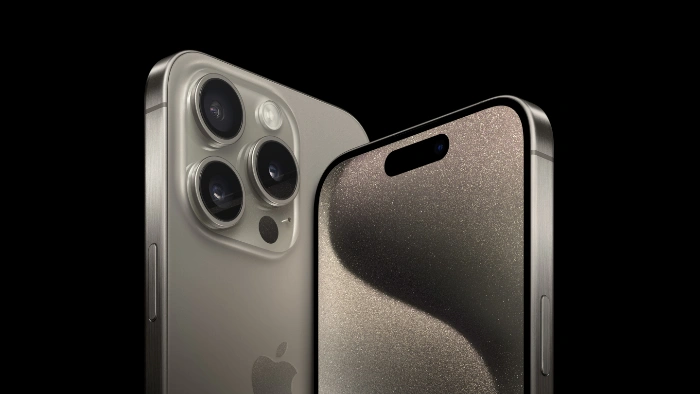
The Action Button on the iPhone 15 Pro and 15 Pro Max is a new feature that allows you to quickly and easily access your favorite actions and shortcuts. It is located on the right side of the phone, below the volume buttons. This guide is designed to show you a range of different ways that you can use this feature on the latest iPhones.
To use the Action Button, simply press and hold it. You will then see a list of actions that you can choose from. The default actions are:
- Silent mode
- Focus
- Camera
- Flashlight
- Voice memo
- Magnifier
- Shortcut
- Accessibility
- Do nothin
To choose an action, simply tap on it. You can also customize the list of actions that appear by going to Settings > Action Button.
Here are some examples of how you can use the Action Button:
- Quickly open your camera: If you frequently use your camera, you can assign the Action Button to open the Camera app. This will allow you to quickly take a photo or video without having to unlock your phone and open the app manually.
- Turn on Silent mode: If you need to quickly silence your phone, you can assign the Action Button to turn on Silent mode. This is useful if you are in a meeting or other situation where you need to keep your phone quiet.
- Turn on a Focus: If you use Focus modes to manage your notifications, you can assign the Action Button to turn on a specific Focus mode. This is a quick and easy way to switch to a different Focus mode without having to go to the Control Center.
- Run a shortcut: If you have a favorite shortcut, you can assign the Action Button to run it. This is a great way to automate tasks that you frequently perform. For example, you could create a shortcut to open your favorite social media app or to start playing music.
- Access an accessibility feature: If you use any accessibility features, you can assign the Action Button to quickly access them. This can be helpful if you frequently need to use a particular accessibility feature. For example, you could assign the Action Button to turn on VoiceOver or to invert the colors on your screen.
The Action Button is a versatile new feature that can be customized to fit your needs. Experiment with different actions and shortcuts to find the ones that you use most often.
Here are some additional tips for using the Action Button:
- You can use the Action Button even when your phone is locked. This can be useful if you need to quickly access a specific action, such as turning on the flashlight or turning on Silent mode.
- You can also use the Action Button with Siri. For example, you could say “Hey Siri, press and hold the Action Button to open my camera.”
- If you have an Apple Watch, you can also use the Action Button on your watch to control your iPhone. To do this, go to the Settings app on your Apple Watch and then tap on Action Button.
Creative ways to use the Action Button:
- Assign the Action Button to take a screenshot and share it immediately to a specific person or social media platform.
- Assign the Action Button to start recording a video and then automatically upload it to a specific cloud storage service.
- Assign the Action Button to turn on your smart home lights or other devices.
- Assign the Action Button to start playing your favorite music playlist.
- Assign the Action Button to open a specific app or website.
Here are some specific examples of creative ways to use the Action Button:
- If you are a photographer, you could assign the Action Button to turn on your camera flash and then immediately switch to manual mode. This would allow you to quickly and easily take a professional-looking photo in any lighting condition.
- If you are a musician, you could assign the Action Button to start recording a video and then automatically upload it to YouTube. This would allow you to quickly and easily share your music with the world.
- If you are a home automation enthusiast, you could assign the Action Button to turn on your smart home lights or other devices. This would allow you to quickly and easily control your home with a single press of a button.
- If you are a fitness enthusiast, you could assign the Action Button to start tracking your workout or to open a specific fitness app. This would allow you to quickly and easily start tracking your progress toward your fitness goals.
The possibilities are endless! Experiment with different actions and shortcuts to find the ones that work best for you, with a little creativity, you can use the Action Button to make your iPhone even more useful and convenient. You can find out more details about the Action Button over at Apple’s website at the link below.
Source Apple
Disclosure: Some of our articles include affiliate links. If you buy something through one of these links, Geeky Gadgets may earn an affiliate commission. Learn about our Disclosure Policy.
