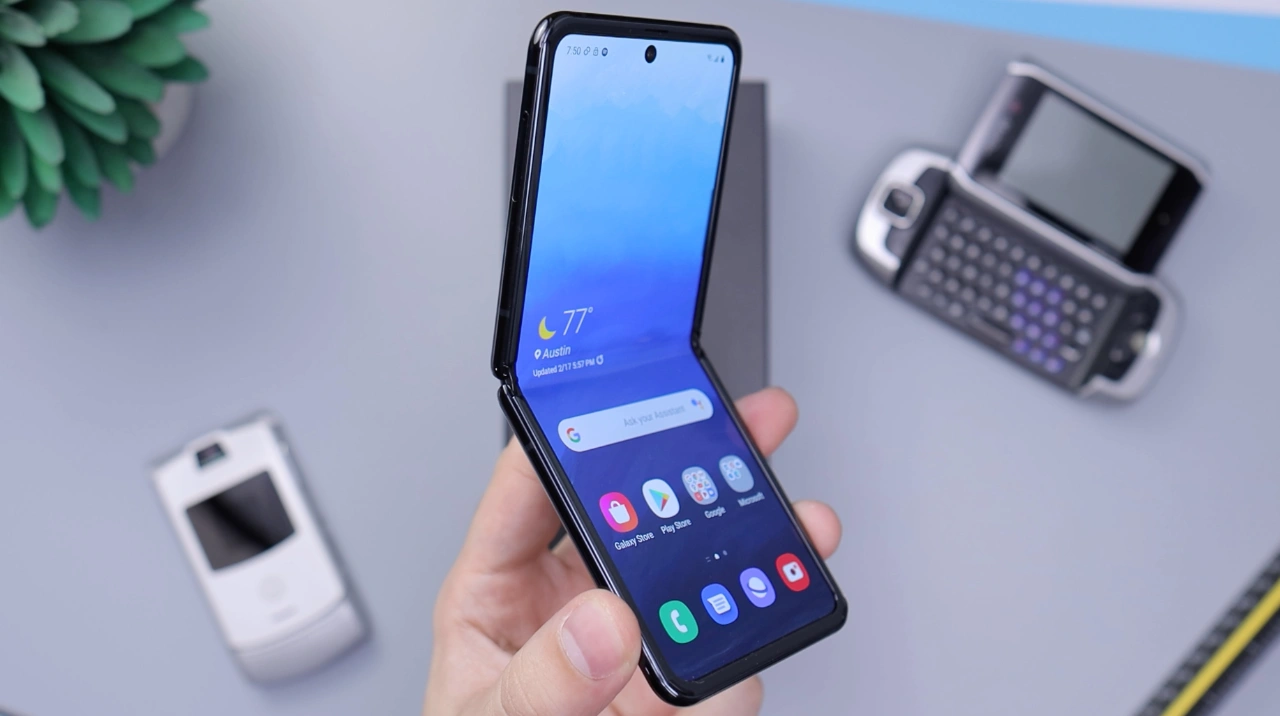
This guide is designed to show you how to speed up your Samsung Galaxy smartphone, we cover a wide range of tips and more. The Samsung Galaxy smartphones rank among the most sought-after devices in today’s market, and it’s easy to see why.
These phones are a technological tour de force, brimming with an array of features that cater to diverse user needs. They deliver exceptional performance, seamlessly blending speed and efficiency, and are available in a spectrum of price ranges to suit various budgets. Yet, it’s important to acknowledge that even the finest smartphones are not immune to the ravages of time and intensive use. Over the years, even these stellar devices can experience a gradual slowdown, particularly if they are subjected to heavy, continuous use.
If your Samsung Galaxy smartphone is starting to feel sluggish, there are a number of things you can do to speed it up. Here are a few tips:
1. Restart your phone
One of the simplest and most effective ways to speed up your phone is to simply restart it. This will clear out any unused apps and processes that are running in the background and can slow down your phone.
To restart your phone, press and hold the power button for a few seconds until the power menu appears. Then, tap Restart.
2. Check your storage space
If your phone’s storage space is full, it can slow down performance. Try to free up some space by deleting unused apps and files.
To check your storage space, go to Settings > Storage. You’ll see a breakdown of how much space is used by different types of files.
3. Disable unnecessary apps
Many apps run in the background even when you’re not using them. This can drain your battery and slow down your phone.
To disable unnecessary apps, go to Settings > Apps & notifications. Then, tap See all apps.
For each app, tap Force Stop to stop it from running in the background. You can also tap Disable to disable the app completely.
4. Update your software
Samsung regularly releases software updates for its Galaxy smartphones. These updates often include performance improvements, so it’s important to keep your software up to date.
To check for software updates, go to Settings > Software update. Then, tap Download and install.
5. Use a lightweight launcher
The launcher is the user interface that you see when you turn on your phone. It’s responsible for managing your apps and launching them when you tap on them.
Some launchers are more lightweight than others. If your phone is starting to slow down, try switching to a lightweight launcher, such as Nova Launcher or Lawnchair Launcher.
6. Disable animations
Animations can make your phone look more polished, but they can also slow down performance. To disable animations, go to Settings > Developer options. Then, scroll down and tap Window animation scale, Transition animation scale, and Animator duration scale. Set all of these values to 0.5x or Off.
7. Factory reset your phone
If you’ve tried all of the above tips and your phone is still slow, you may need to factory reset it. This will erase all of your data and settings, so be sure to back up everything important before you proceed.
To factory reset your phone, go to Settings > General management > Reset > Factory data reset. Then, tap Reset and Erase everything.
Additional tips
Here are a few additional tips that can help to speed up your Samsung Galaxy smartphone:
- Avoid using too many live wallpapers. Live wallpapers are animated and can use up a lot of processing power.
- Keep your phone cool. Overheating can cause your phone to slow down. If your phone is getting hot, take a break from using it or put it in a cool place.
- Use a microSD card to store apps and photos. This will free up space on your phone’s internal storage and improve performance.
- Avoid installing too many apps. The more apps you have installed, the more likely your phone is to slow down. Only install apps that you really need.
If you’ve followed all of the tips above and your phone is still slow, it may be time to upgrade to a newer device. Samsung Galaxy smartphones are constantly evolving, and newer models offer better performance and features. We hope that you find this guide helpful, please leave a comment below and lets us kn ow if you have any questions or suggestions.
Image Credit: Daniel Romero
Disclosure: Some of our articles include affiliate links. If you buy something through one of these links, Geeky Gadgets may earn an affiliate commission. Learn about our Disclosure Policy.
