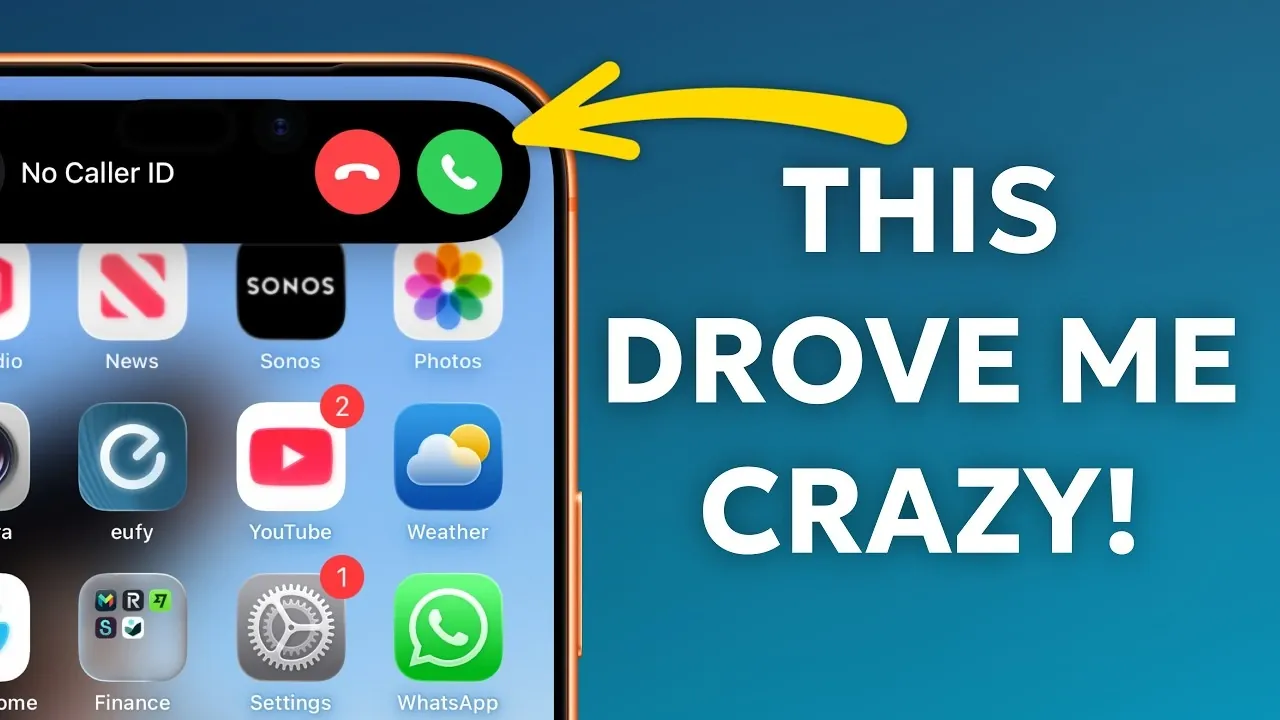
iPhones are renowned for their functionality and user-friendly design, but even the most advanced devices can present challenges. Many users encounter recurring issues that can disrupt their experience, ranging from cluttered inboxes to accidental camera launches. Fortunately, most of these problems have straightforward solutions. The video below from HotShotTek explores ten common iPhone annoyances and provides practical steps to resolve them, helping you optimize your device for a smoother and more enjoyable experience.

Email Link Previews: Declutter Your Inbox
Email link previews can make your inbox appear cluttered and harder to navigate. These previews often display unnecessary content, slowing down your ability to focus on important messages. To simplify your inbox and reduce visual noise:
- Open Settings and navigate to Mail.
- Locate the Message Preview option and adjust it to show fewer lines or none at all.
This adjustment ensures that your inbox displays only subject lines or brief snippets, making it easier to prioritize and manage your emails efficiently.
Volume Control: Prevent Accidental Changes
Accidentally altering your ringer volume while adjusting media playback can be frustrating, especially if you rely on consistent notification sounds. To prevent this issue:
- Go to Settings and select Sounds & Haptics.
- Disable the Change with Buttons option.
With this setting, your volume buttons will only control media playback, making sure your ringer volume remains consistent and unaffected by accidental presses.
Auto-Brightness: Take Control of Your Screen
Auto-brightness is designed to adjust your screen’s brightness based on ambient lighting, but it doesn’t always align with personal preferences. To maintain consistent brightness levels:
- Open Settings and go to Accessibility.
- Select Display & Text Size and toggle off Auto-Brightness.
This change gives you full control over your screen’s brightness, allowing you to set it to a level that suits your needs without unexpected adjustments.
Flashlight Brightness: Customize the Intensity
The flashlight feature on your iPhone is a convenient tool, but its default brightness may not always match your requirements. To adjust the flashlight intensity:
- Access the Control Center by swiping down from the top-right corner of the screen.
- Press and hold the flashlight icon.
- Use the slider to select your preferred brightness level.
Once set, your flashlight will retain the chosen brightness, eliminating the need to adjust it each time you use it.
Screenshot Organization: Reduce Photo Library Clutter
Screenshots can quickly accumulate in your photo library, making it harder to locate important images. To keep your library organized and reduce clutter:
- Open the Photos app and navigate to the filter options.
- Hide screenshots from your main photo feed while still accessing them in the dedicated Screenshots album.
This approach ensures that your primary photo feed remains clean and focused on personal photos and videos.
Camera Control Button: Avoid Accidental Launches
Accidentally activating the camera can drain your battery and interrupt your workflow. To minimize the chances of unintentional launches:
- Adjust your camera activation settings to require a double-click or ensure the screen is unlocked before the camera opens.
This small adjustment helps conserve battery life and prevents unnecessary interruptions during your day.
Live Photos: Save Storage Space
Live Photos capture a few seconds of video and audio along with your photo, which can consume significant storage space. If you don’t frequently use this feature, you can disable it by default:
- Go to Settings and select Camera.
- Tap Preserve Settings and enable the option to keep Live Photos off.
This ensures that Live Photos remain disabled unless you choose to activate them manually, helping you save valuable storage space.
Spotlight Search: Streamline Navigation
Spotlight Search is a powerful tool that allows you to quickly locate apps, files, or perform tasks such as calculations. To make the most of this feature:
- Swipe down on your home screen to access Spotlight Search.
- Type your query to find apps, documents, or settings instantly.
Using Spotlight Search can save time and improve your overall navigation experience by reducing the need to scroll through multiple screens or folders.
Spam Call Management: Minimize Interruptions
Spam calls are a persistent nuisance for many iPhone users. To reduce interruptions and regain control over your incoming calls:
- Enable the Silence Unknown Callers feature in Settings > Phone.
- Consider using third-party caller identification apps to screen and block unwanted calls.
These measures help you manage spam calls effectively, making sure that only important calls reach you.
Drag-and-Drop Functionality: Simplify Multitasking
The drag-and-drop feature on iPhones enhances productivity by allowing you to move content between apps seamlessly. For example:
- Drag a photo from the Photos app and drop it into an email draft or message.
- Move text from a webpage into a note or document.
This functionality reduces repetitive actions and streamlines multitasking, making it easier to complete tasks efficiently.
By addressing these common iPhone annoyances, you can significantly improve your device’s usability and tailor it to your preferences. Whether it’s decluttering your inbox, customizing flashlight brightness, or managing spam calls, these practical solutions empower you to take full control of your iPhone and enjoy a more seamless experience.
Browse through more resources below from our in-depth content covering more areas on iPhone.
- iPhone 18 Pro Max Leak: Dynamic Island Stays For 2026
- iPhone Fold: 7.8-Inch Screen & Galaxy Z Fold 8 Comparison
- Apple’s iPhone Fold: Everything We Know So Far
- Iphone Fold Leak: 8-inch Display and a $2,500 Price Point
- No iPhone 18 In 2026? Here’s What Apple is Doing Instead
- iPhone 18 Pro Max Design Leaks: Smaller Dynamic Island & More
Source & Image Credit: Proper Honest Tech
Disclosure: Some of our articles include affiliate links. If you buy something through one of these links, Geeky Gadgets may earn an affiliate commission. Learn about our Disclosure Policy.
