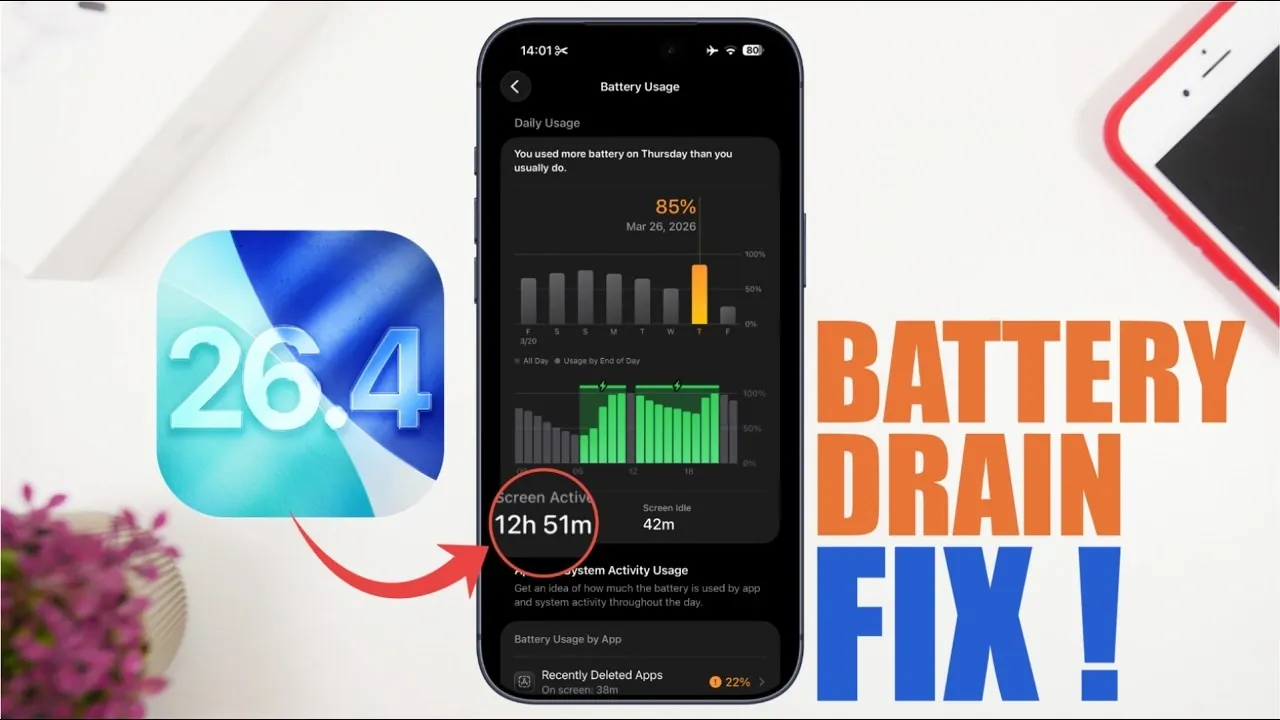
If you’ve noticed a significant decline in your iPhone’s battery life after updating to iOS 26.4, you’re not alone. Battery drain issues can arise from a variety of factors, including system settings, app behavior, and usage patterns. This guide outlines practical and effective solutions to help you optimize your iPhone’s battery performance and minimize unnecessary power consumption. The video below from iReviews gives us more details on how to fix battery drain in the latest version of Apple’s iOS.
1. Keep Software and Apps Updated
Outdated software and apps can cause compatibility issues, leading to increased battery usage. Making sure that your iPhone and its apps are running the latest versions is a critical first step in addressing battery drain.
- Check for iOS updates by going to Settings > General > Software Update. Install any available updates to ensure your device is running the latest version.
- Enable automatic app updates by navigating to Settings > App Store > Automatic Downloads. This ensures your apps stay up to date without manual intervention.
Regular updates often include bug fixes and performance enhancements that can improve battery efficiency and overall device stability.
2. Adjust Display Settings
The display is one of the most power-hungry components of your iPhone. Making a few adjustments to your screen settings can significantly extend battery life.
- Reduce screen brightness manually or enable Auto-Brightness in Settings > Display & Brightness. This feature adjusts brightness based on ambient light conditions.
- Disable the Always-On Display wallpaper feature, which can consume unnecessary energy.
- Turn on Reduce Bright Effects in Settings > Accessibility > Display & Text Size to lower the intensity of visual effects.
These changes help reduce the energy required to power your screen, especially during prolonged use.
3. Manage Background App Activity
Apps running in the background can quietly drain your battery. Reviewing and managing these processes can help conserve power and improve overall performance.
- Identify apps that consume excessive power by checking Settings > Battery. This section provides a detailed breakdown of battery usage by app.
- Disable unused features like Siri Suggestions in Settings > Siri & Search to prevent unnecessary background activity.
- Uninstall apps you rarely use to free up resources and reduce background processes.
By limiting unnecessary app activity, you can extend your device’s battery life and improve its efficiency.
4. Fine-Tune Notifications and Location Services
Notifications and location services are useful but can contribute to battery drain if not properly managed. Adjusting these settings can help reduce power consumption.
- Turn off notifications for non-essential apps in Settings > Notifications. This reduces the number of times your screen lights up unnecessarily.
- Organize notifications into summaries to minimize interruptions and save power.
- Set location services to While Using the App or disable them for apps that don’t require precise location tracking in Settings > Privacy & Security > Location Services.
These adjustments help reduce background activity and extend battery life without compromising essential functionality.
5. Limit Background Visual Features
Visual elements such as widgets and live wallpapers can quietly drain your battery. Simplifying your interface can lead to noticeable improvements in battery performance.
- Remove unused widgets from your home and lock screens. Widgets that update frequently consume additional power.
- Avoid using live or spatial wallpapers, as they require constant updates to display animations or effects.
Streamlining your interface not only conserves battery but also enhances the overall responsiveness of your device.
6. Adjust Haptics and Camera Shortcuts
Haptic feedback and camera shortcuts are convenient features but can contribute to battery drain if left unchecked. Making small adjustments to these settings can help conserve power.
- Reduce or disable haptic feedback under Settings > Sounds & Haptics. This includes vibrations for system interactions and notifications.
- Turn off the lock screen camera shortcut in Settings > Face ID & Passcode to prevent accidental activations that can drain your battery.
These minor tweaks can make a significant difference in your device’s daily power consumption.
7. Optimize Media Playback
Media playback, particularly video streaming, is a major source of battery drain. Adjusting playback settings can help you conserve power during extended use.
- Stream audio-only versions of podcasts or videos when possible. This reduces the energy required for video rendering.
- Lower the video resolution for streaming services to minimize power consumption during playback.
By optimizing media settings, you can enjoy your favorite content without worrying about rapid battery depletion.
8. Enable Low Power Mode When Needed
Low Power Mode is a built-in feature designed to extend battery life by reducing background activity and system performance. Activating this mode during periods of low battery can help you get the most out of your remaining charge.
- Enable Low Power Mode manually in Settings > Battery or through the Control Center for quick access.
- Consider using this mode proactively during long days or when you anticipate limited access to charging.
This feature is particularly useful for conserving power without requiring significant manual adjustments to your settings.
Take Control of Your Battery Life
Addressing battery drain on iOS 26.4 involves a combination of software updates, system adjustments and mindful usage habits. By implementing these strategies, you can reduce unnecessary power consumption and enjoy a longer-lasting battery. Start applying these tips today to optimize your iPhone’s performance and ensure it stays powered throughout the day.
Uncover more insights about iOS 26.4 in previous articles we have written.
- iOS 26.4 Icon Changes: How Apple’s New Liquid Glass Look Works
- Everything New in iOS 26.4 Beta 4: CarPlay, AI, and More
- iOS 26.4 Guide: New Features, Release Date, and Performance
- iOS 26.4 Release Date, Features, and Performance Details
- When Will iOS 26.4 Be Released? Full Details Inside
- iOS 26.4 RC Fixes iPhone Keyboard Accuracy Bug: What’s New
Source & Image Credit: iReviews
Disclosure: Some of our articles include affiliate links. If you buy something through one of these links, Geeky Gadgets may earn an affiliate commission. Learn about our Disclosure Policy.
