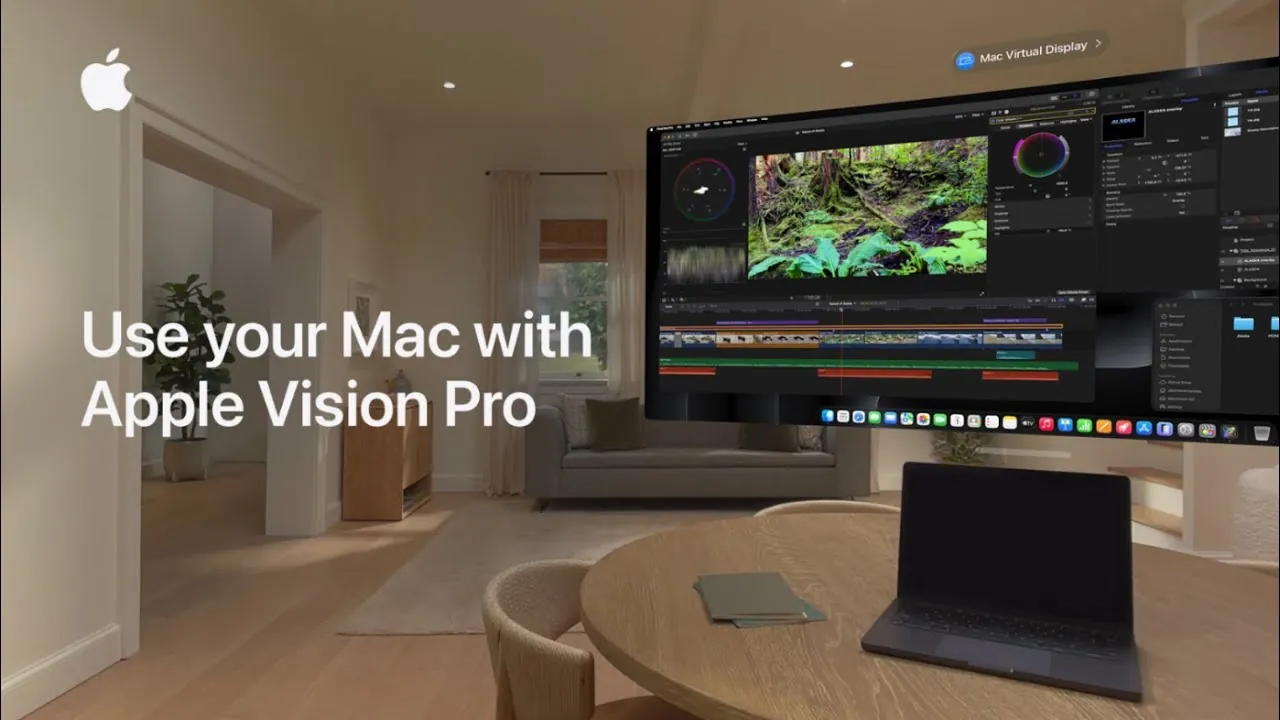
The Apple Vision Pro introduces a new way to interact with your Mac through its Mac Virtual Display feature. This integration transforms the Vision Pro into a private, portable display, offering an immersive and distraction-free workspace. By combining the power of your Mac with the advanced capabilities of Vision Pro, you can create a seamless and productive environment. To fully use this feature, it is essential to ensure proper setup and configuration of both devices. The video below from Apple gives us more details.
Preparation: Making sure Compatibility and Connectivity
Before diving into the Mac Virtual Display feature, it is crucial to confirm that your devices meet the necessary requirements. Both your Mac and Vision Pro must run the latest versions of their respective operating systems to ensure compatibility and access to the newest features. Keeping your devices updated not only enhances functionality but also ensures security.
To establish a secure and reliable connection, follow these steps:
- Sign in to the same Apple ID on both your Mac and Vision Pro.
- Enable two-factor authentication for enhanced security.
- Ensure that Wi-Fi, Bluetooth, and iCloud Keychain are active on both devices.
These wireless technologies form the backbone of the connection, allowing seamless communication between your Mac and Vision Pro. Taking the time to verify these settings ensures a smooth and uninterrupted experience.
Connecting to Mac Virtual Display
Once your devices are prepared, connecting your Mac to the Vision Pro is a straightforward process. This connection allows you to mirror your Mac’s screen onto the Vision Pro, creating a virtual display that enhances your workspace. Follow these steps to establish the connection:
- Access the Control Center on your Vision Pro or use the connect button on your Mac.
- Select your Mac from the list of available devices.
Once connected, your Mac’s screen will appear on the Vision Pro, providing an immersive environment for tasks such as editing documents, reviewing presentations, or multitasking. This setup is particularly beneficial for professionals who require focus and flexibility in their workspaces.
Customizing Your Virtual Workspace
The Mac Virtual Display feature offers extensive customization options, allowing you to tailor your workspace to your specific needs. These adjustments ensure that your virtual environment is both comfortable and efficient. Here’s how you can personalize your setup:
- Reposition the Display: Use pinch and drag gestures on the window bar to move the virtual screen to a comfortable position within your field of view. This flexibility ensures that your workspace aligns with your natural line of sight.
- Resize the Display: Pinch and drag the bottom corners of the screen to adjust its size. For tasks requiring a broader perspective, switch to ultrawide mode, which provides a panoramic view ideal for multitasking or analyzing complex data.
These intuitive gestures make it easy to create a workspace that suits your preferences, whether you’re working on detailed projects or managing multiple applications simultaneously.
Disconnecting the Virtual Display
When you’re finished using the Mac Virtual Display, disconnecting is a simple process. This ensures that your Vision Pro is ready for its next use without any lingering connections. To disconnect:
- Tap the close button located at the bottom of the virtual window.
This action ends the session and returns your Vision Pro to its default state. The simplicity of this process ensures that transitioning between tasks is quick and hassle-free.
Enhanced Productivity Through Immersive Technology
The Mac Virtual Display feature exemplifies the seamless integration of Apple’s ecosystem, combining the power of your Mac with the immersive capabilities of the Vision Pro. This technology expands your workspace, allowing you to boost productivity whether you’re working remotely, traveling, or seeking a more flexible setup.
With tools like display resizing, ultrawide modes, and intuitive gestures, the Vision Pro redefines how you interact with your Mac. By following the steps outlined above, you can unlock the full potential of this feature and create a workspace tailored to your needs. Whether you’re a professional seeking focus or a creative looking for inspiration, the Mac Virtual Display offers a dynamic and versatile solution for modern workflows.
Advance your skills in Mac Virtual Display by reading more of our detailed content.
- Apple Vision Pro Gets M5 Chip Upgrade
- How to Use the Apple Vision Pro Control Center
- The Truth About Apple’s Vision Pro: Is It Worth Your Money?
- Run Windows 11 on Your Mac: A Complete Guide
- M4 Mac Mini Home Server: The Ultimate Guide for Beginners
Source & Image Credit: Apple Support
Disclosure: Some of our articles include affiliate links. If you buy something through one of these links, Geeky Gadgets may earn an affiliate commission. Learn about our Disclosure Policy.
